> For the complete documentation index, see [llms.txt](https://docs.akamas.io/akamas-docs/llms.txt). Markdown versions of documentation pages are available by appending `.md` to page URLs; this page is available as [Markdown](https://docs.akamas.io/akamas-docs/3.5.0/managing-akamas/users-management/configure-an-external-identity-provider/azure-active-directory.md).
# Azure Active Directory
This page provides a walkthrough to configure Azure Active Directory as an external identity provider for Akamas users.
{% hint style="info" %}
You will need an Azure account with the `Application.ReadWrite.All` permission, required to create *app registrations* in your Azure AD tenant.
{% endhint %}
## Configure the App registration
To integrate Akamas with your Active Directory, you first need a dedicated *App registration* in your Azure Organization. If you want to use an existing registration, skip to [Get the client configuration](#get-the-client-configurations); to create a new one, refer to the following sub-section.
{% hint style="info" %}
Multiple Akamas instances can share the same *app registration*. It implies that any AD user added to a registration could access all the associated Akamas instances.
If you need to manage accesses with finer granularity, create a dedicated registration for each Akamas installation.
{% endhint %}
### Create a new App registration
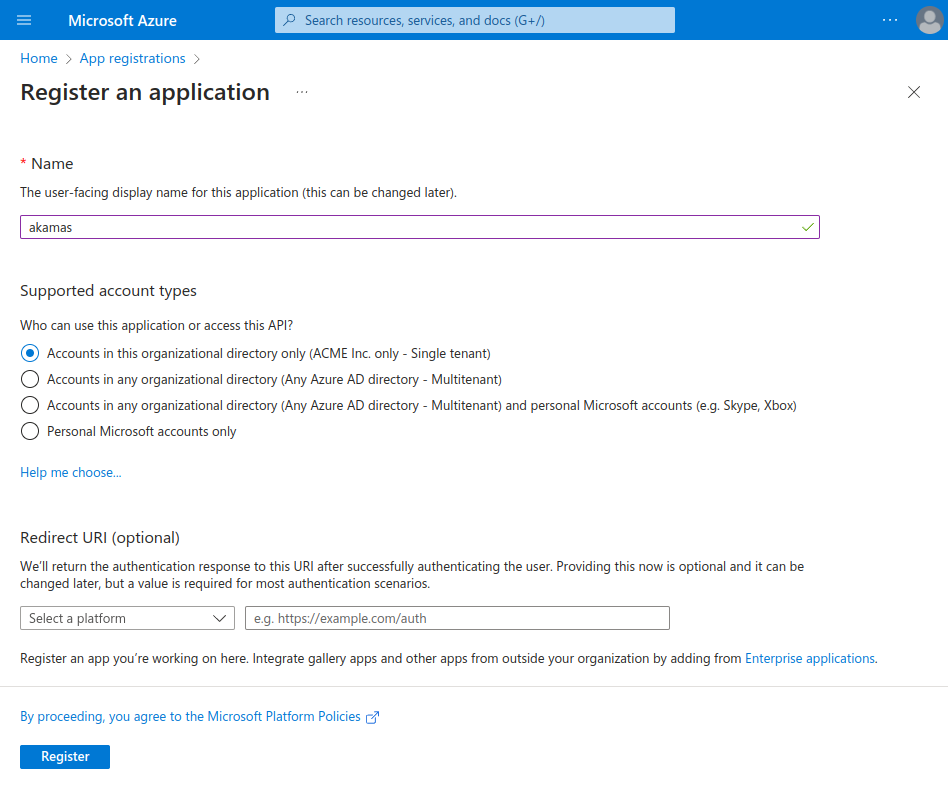
To create a new registration, navigate to ["App registrations"](https://portal.azure.com/#blade/Microsoft_AAD_RegisteredApps/ApplicationsListBlade) in your Azure portal and select "New registration" and specify the following:
* a *name* for the application
* the *account type* that best suits your use case
Complete the creation by clicking on "Register".
### Get the client configuration
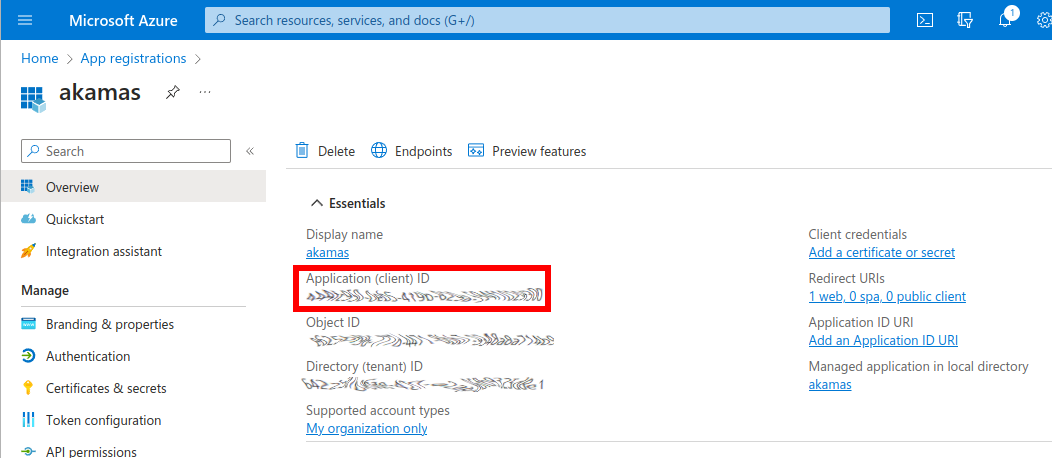
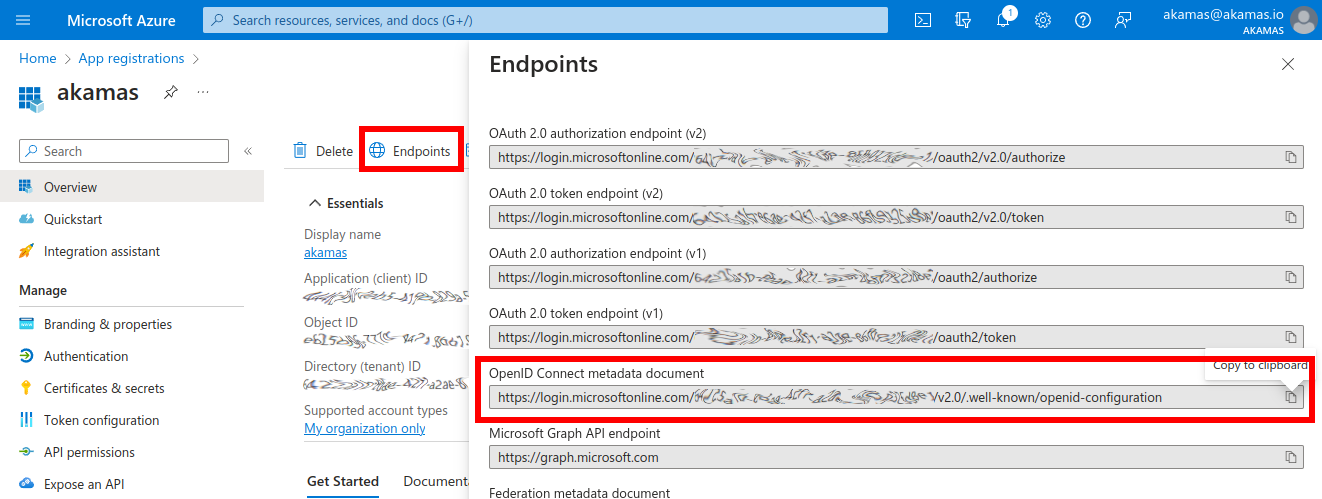
On the "Overview" page of the application, note the following values:
* *Application (client) ID*
* *OpenID Connect metadata document* (found in the "Endpoints" side panel)
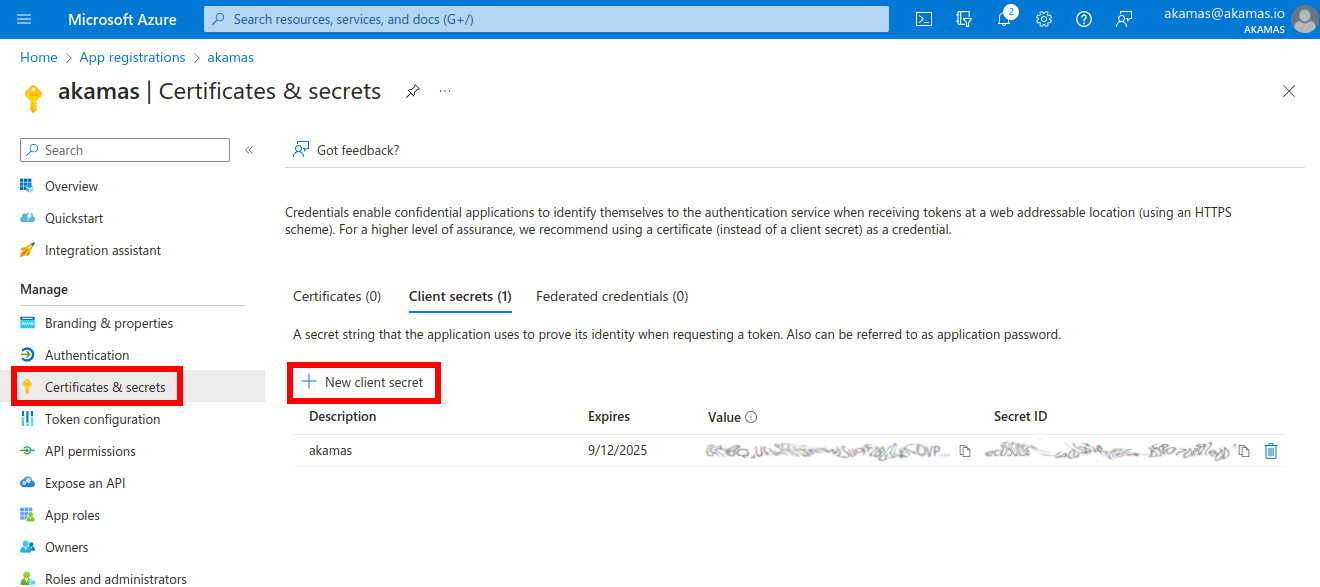
Furthermore, in the "Certificates & secrets" section, create a new *Client secret* and note its value.
With these values, we can now complete the provider configuration in the Keycloak console.
## Create the Identity provider
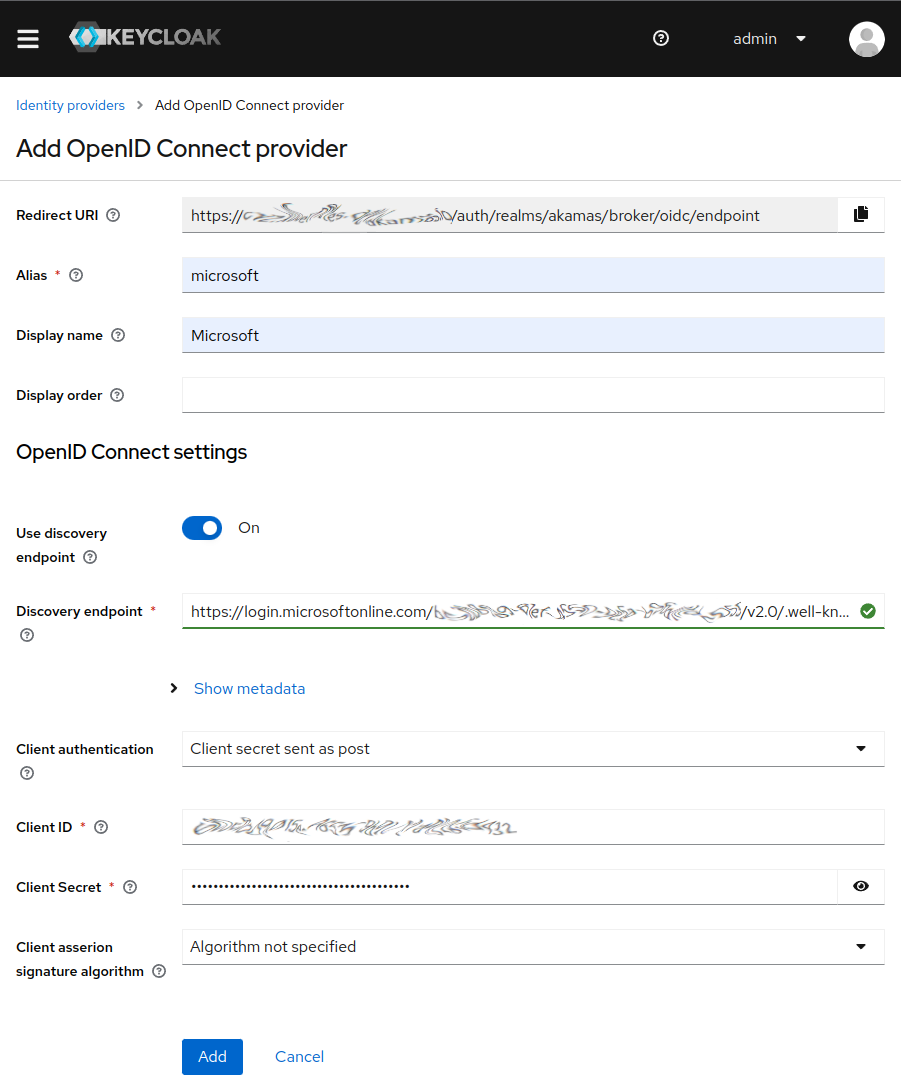
Access the *Identity providers* section for the "akamas" realm in the Keycloak administration console, as described on the page [Configure an external identity provider](/akamas-docs/3.5.0/managing-akamas/users-management/configure-an-external-identity-provider.md), and select "OpenID Connect v1.0" to start creating the new provider.
Here, specify an *alias* for the client ("microsoft" in our case) and optionally the *display name* used in the login page ("Microsoft").
In the "OpenID Connect settings" section, configure the following fields using the values from the *app registration* in the Azure portal:
* "Discovery endpoint": populate with the URL of the "OpenID Connect metadata document". This box should become green upon successful validation.
* "Client ID": populate with the "Application (client) ID" from the app's overview page
* "Client Secret": populate with the value of the generated secret
Complete the configuration by clicking "Add". You will land on the detail page of the new provider: here, copy the value of the *redirect URI.*
## Complete the app registration
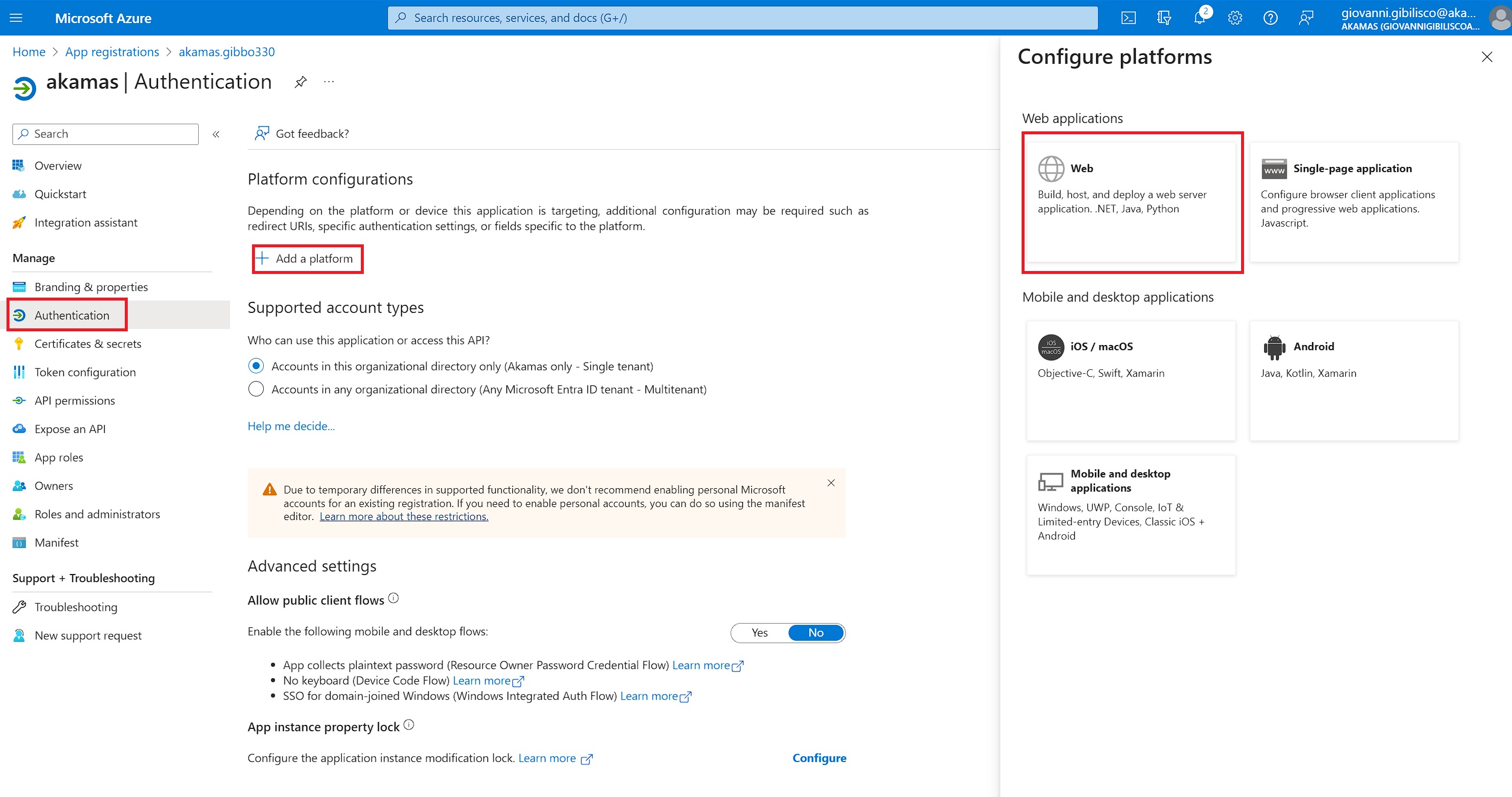
Back to the *app registration* in the Azure portal, navigate to the "Authentication" section. Add the "Web" platform (if not already present).
Finally, add to the list of *redirect URIs* the one from the previous step.
You have now configured Akamas to delegate to Azure your users' login.
{% hint style="warning" %}
When changing the hostname of the Akamas installation, you need to update the *redirect URI* configured in the *app registration*. Skipping this step will block any login attempt with the following error:
> The redirect URI 'https\://...' specified in the request does not match the redirect URIS configured for the application '...'.
> {% endhint %}
## Configure the default Akamas roles
The final setup step is to instruct Akamas to associate the default roles with the users automatically. This way, users will be added to the default workspace with read and write permissions the first time they log in.
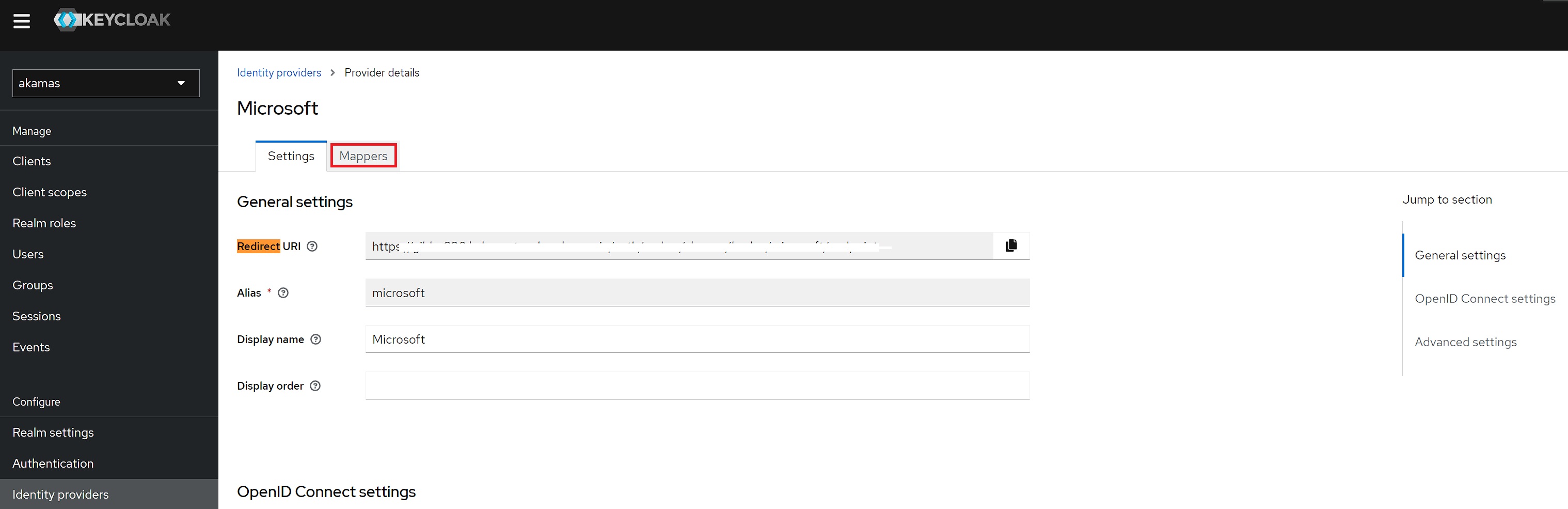
On the Keycloak console, on the provider's details page, navigate to "Mappers":
Now, add the following configurations.
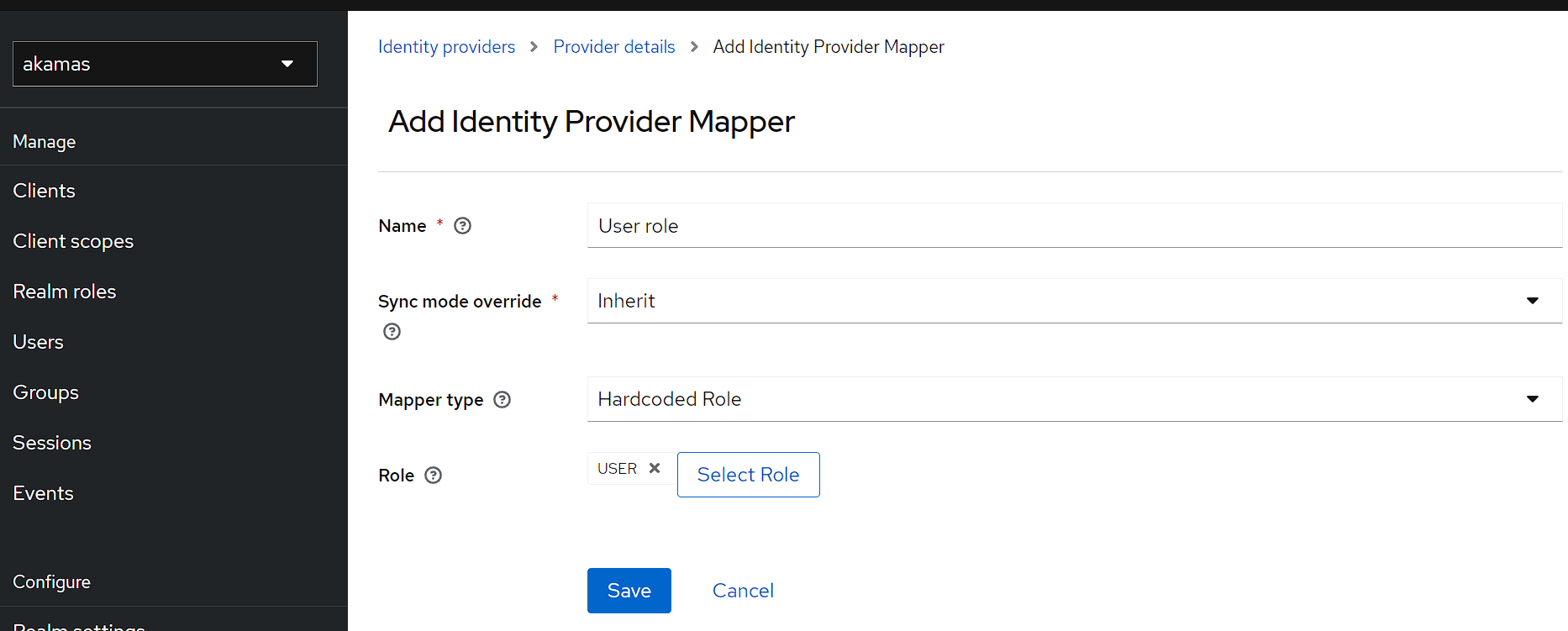
**User role**
* Name: *User role*
* Mapper type: *Hardcoded role*
* Role: *USER*
User Role map
**Default Workspace Read**
* Name: *Default Workspace Read*
* Mapper type: *Hardcoded role*
* Role: *WS\_ac8481d3-d031-4b6a-8ae9-c7b366f027e8\_R*
**Default Workspace Write**
* Name: *Default Workspace Write*
* Mapper type: *Hardcoded role*
* Role: *WS\_ac8481d3-d031-4b6a-8ae9-c7b366f027e8\_W*
## Test the integration
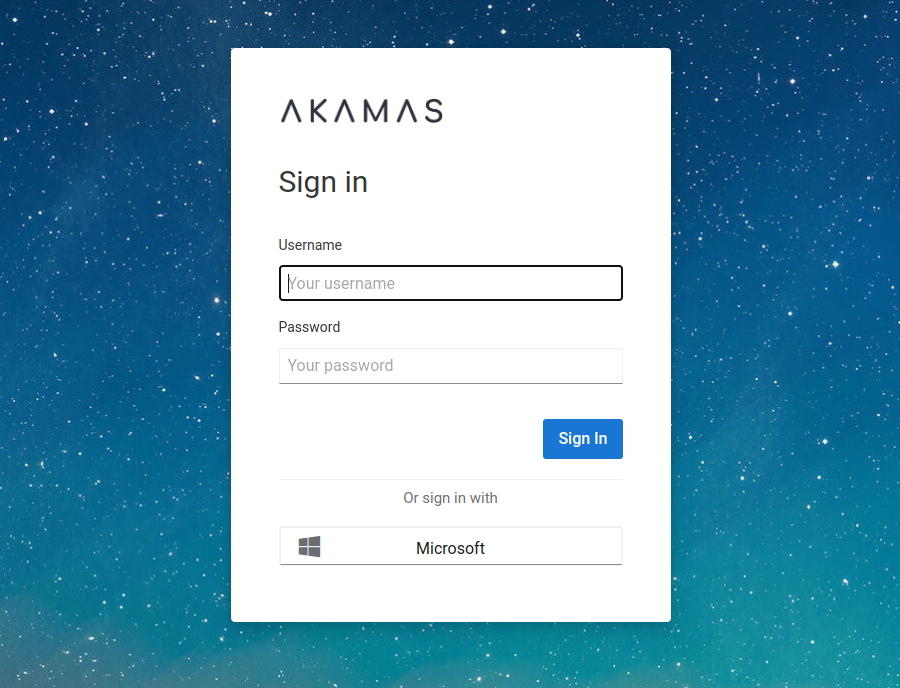
Visit the installation's login page to check that the new authentication method is displayed and works correctly.
---
# Agent Instructions
This documentation is published with GitBook. GitBook is the documentation platform designed so that both humans and AI agents can read, navigate, and reason over technical content effectively. Learn more at gitbook.com.
## Querying This Documentation
If you need additional information that is not directly available in this page, you can query the documentation dynamically by asking a question.
Perform an HTTP GET request on the current page URL with the `ask` query parameter, and the optional `goal` query parameter:
```
GET https://docs.akamas.io/akamas-docs/3.5.0/managing-akamas/users-management/configure-an-external-identity-provider/azure-active-directory.md?ask=&goal=
```
`ask` is the immediate question: it should be specific, self-contained, and written in natural language.
`goal` is optional and describes the broader end goal you are ultimately trying to accomplish on behalf of the user. GitBook uses it to tailor the answer towards what is most useful for that goal.
The response will contain a direct answer to the question and relevant excerpts and sources from the documentation.
Use this mechanism when the answer is not explicitly present in the current page, you need clarification or additional context, or you want to retrieve related documentation sections.